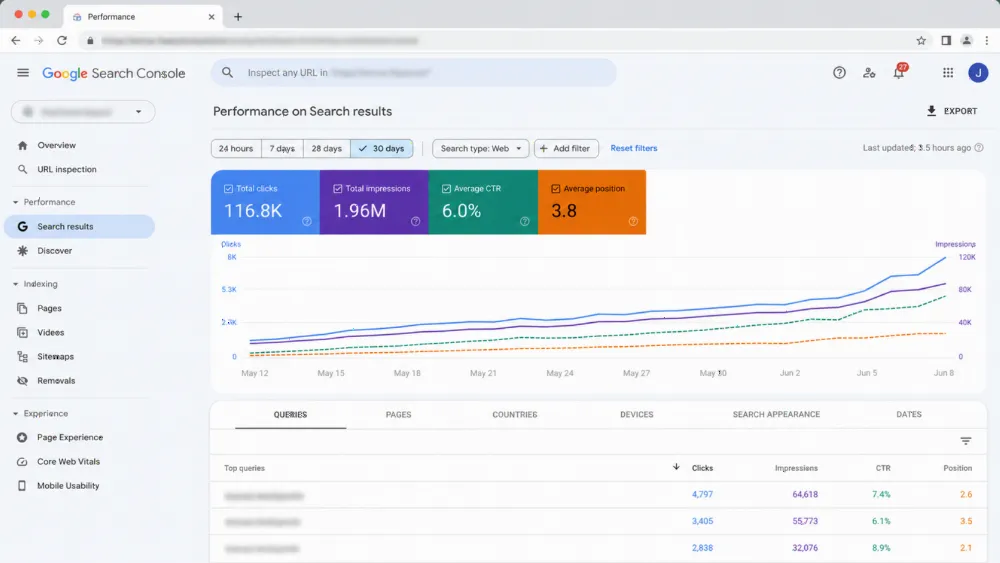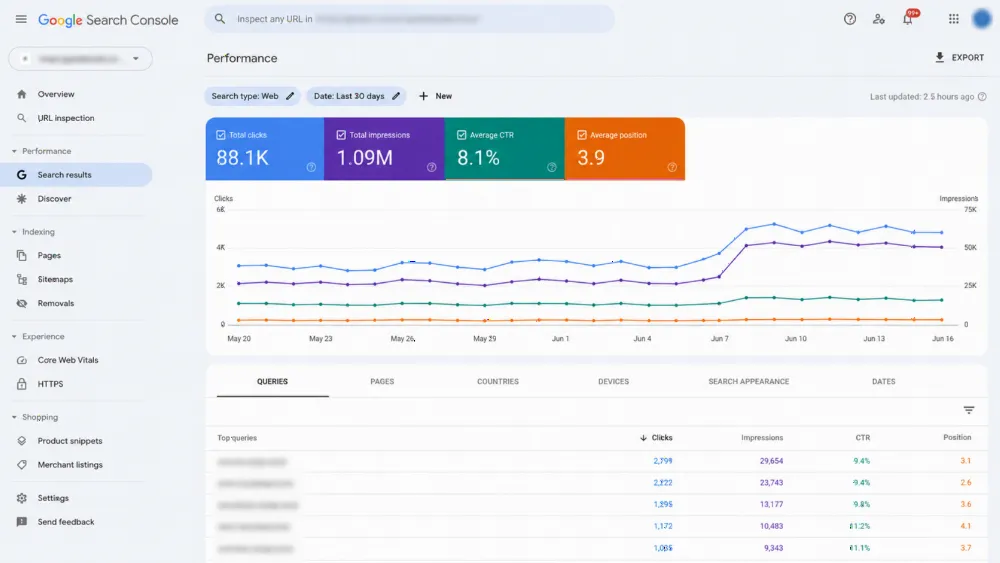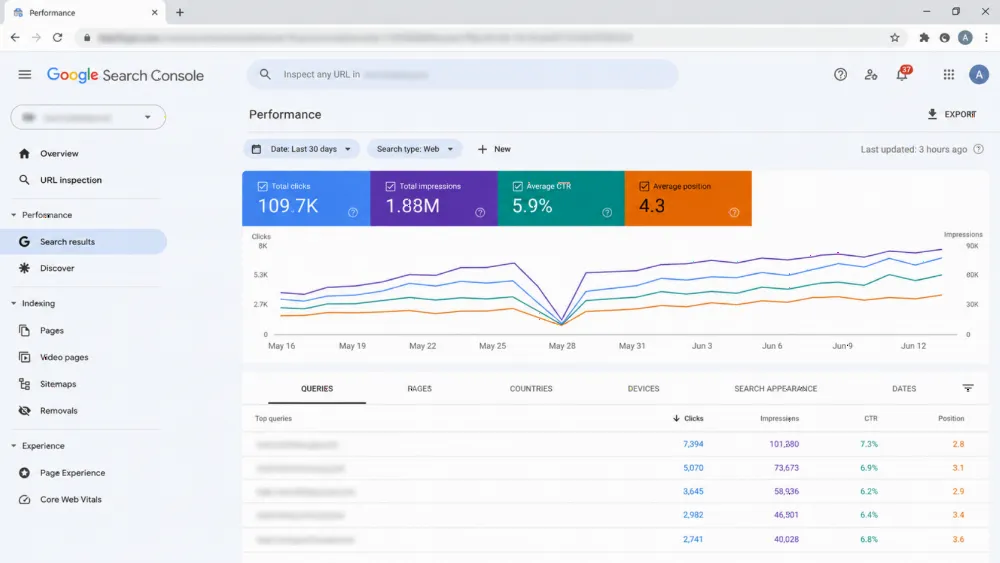
Your relaunched website looks complete, yet its service pages sit in Search Console at "Crawled — currently not indexed" and enquiries have fallen. The usual cause is not content. It is rendering: the HTML your server first sends Google contains little of the words on the page, because those words appear only after JavaScript runs in a browser. Google can render JavaScript, but rendering is a separate, queued step — pages that depend on it can be deferred or passed over. Below: a ten-minute diagnosis, then the four failure classes behind most collapses, in fix order.
The short answer: if your words are not in the HTML, Google has nothing to index — prove it in ten minutes
Check one affected page three ways. First, the raw HTML: view the page source and search for a distinctive sentence from the middle of the page. Second, the rendered HTML: what the page becomes after JavaScript runs. Third, Search Console's URL Inspection tool, showing Google's own screenshot. If your sentence is missing from the raw HTML, the page depends entirely on Google choosing to render it. If it is missing in the rendered view too, you have a rendering failure, not a content problem
The problem: the page looks perfect in your browser and empty to Google
A modern browser is patient: it downloads JavaScript, waits for API responses, and assembles the finished page — why rendering failures survive launch checklists. Google's first visit is different: before any rendering, it fetches the URL and reads the HTML in the response. On a failing page it holds a shell or a loading state, not the headings, text, links and metadata a well-built page carries.
The old site served finished HTML. The new stack — as our primer on Next.js for business owners explains — can too, but only if each template renders content on the server. One browser-fetching component turns a page type back into a shell.
How Google actually processes a JavaScript page (fetch → render queue → index) and where yours can fall out
Google Search Central's JavaScript SEO guidance describes distinct stages. Googlebot first crawls the URL and reads the initial HTML. If the page needs JavaScript to show its content, it joins a rendering queue; Google's rendering service later executes the JavaScript, and indexing works from the result. Each stage is a place to fall out: discovered but not crawled, crawled but stuck behind rendering, rendered with content missing, or rendered and still not selected for the index.
Anything already in the initial HTML skips the queue — why server-side and static rendering are the dependable options for indexable pages. Google also describes dynamic rendering — a pre-rendered version for bots, the client-side app for users — as a workaround, not a long-term solution.

The ten-minute diagnosis: raw HTML vs rendered HTML vs URL Inspection (checklist)
Work through these checks on one failing page before touching any code:
- Pick a main service page, not the homepage, and copy one distinctive sentence from its middle.
- Fetch the raw HTML and search for that sentence. Absent means the content is not server-rendered.
- Disable JavaScript and reload. Whatever disappears was client-rendered; whatever remains is what the initial HTML carries.
- Run URL Inspection in Search Console. Missing sections or a stuck loading state in Google's screenshot are decisive.
- Read the Page Indexing status. "Discovered" points at crawl scheduling; "Crawled — currently not indexed" means Google saw the page and declined it.

Failure 1 — content that only exists client-side (useEffect fetching and loading states)
The most common failure is the simplest: the component mounts empty, then fetches its content from an API once running in the browser — the useEffect pattern. The initial HTML holds a placeholder or a "Loading…" state; the service description exists only after the fetch returns. If rendering is delayed or interrupted, the version indexed is the loading state.
The fix is to move the fetch to the server. App Router page components are Server Components by default: fetch there, and the content is written into the HTML before the response leaves. Keep client components for the interactive layer, passing them fetched data.
Failure 2 — server rendering that bails out (client-only APIs, hooks and libraries in server components)
The subtler failure is a page meant to render on the server that quietly gives up. Next.js names it in build output: BAILOUT_TO_CLIENT_SIDE_RENDERING. It happens when server-rendered code reaches for something that only exists in a browser — window, document, stored preferences — or uses a hook or library that forces client rendering. The official Next.js documentation gives an example: reading useSearchParams() without a Suspense boundary opts the entire page into client-side rendering, leaving it blank until the client JavaScript loads. Wrap that component in a Suspense boundary and only the small part renders client-side.
Hunt in order: search build logs for the bailout message, list client components high in the page tree, and check late-loading third-party widgets. The repair is structural: shrink client components down the tree, behind boundaries.
Failure 3 — metadata, canonicals and hreflang generated in the wrong place
A page can render its body and still fail on the signals around it. In the App Router, metadata comes from the metadata export or generateMetadata, and both work only in Server Components — metadata attempted inside a client component does not reach the server-rendered head as expected. The same misplacement produces the symptoms: every page sharing the homepage's title, canonicals pointing at a listing page, and hreflang alternates injected by client-side code Google's first pass never sees.
Verify, per template, in the raw HTML: a unique title and description, a self-referencing canonical, and hreflang alternates that are present, reciprocal and absolute.
Failure 4 — headless-specific: slow or blocked APIs, preview URLs indexed, content models that ship no text
Headless architecture adds a supply chain between your words and your HTML, and each link can fail silently. If the CMS API is slow at crawl time, times out, or answers Google's requests differently — a firewall, geo-restriction or rate limit your office never triggers — the server ships the shell. If a template reads a preview endpoint, staging URLs can be indexed while live content is not. And some content models ship no readable text: body copy in a format the template renders incompletely.
Test the API as a crawler experiences it, confirm production — not preview — endpoints feed the templates, and view-source one page per content type. Our explainer on what a headless CMS is covers the architecture, and headless CMS development engagements should carry these checks in the launch runbook.

Choosing the rendering mode per page type: SSG, ISR, SSR — and the pages that must never be CSR (table)
Once the failures are fixed, lock in the right default per page type:
| Page type | Recommended rendering | Why |
|---|---|---|
| Core service and location pages | Static generation (SSG) | Rarely changes; finished HTML built once |
| Articles and guides | SSG, or ISR if publishing is frequent | Static output, regenerated on schedule |
| Listings and catalogues that change often | ISR, or SSR where freshness is critical | Data stays current, content still in the HTML |
| Search results, dashboards, account pages | Client-side rendering is acceptable | These pages should generally not be indexed |
| Checkout and enquiry flows | SSR or static shell with client interactivity | Entry page must be readable; interactive steps sit behind it |
Our technical SEO playbook covers rendering alongside crawl budget and performance.
After the fix: validation, resubmission and what to watch in Search Console
Validate before you resubmit. Re-run the diagnosis on every template, confirm the sentence test passes in the raw HTML, and check URL Inspection's rendered output. Then request indexing for priority URLs — a request asks Google to recrawl; it does not guarantee inclusion or a timeframe, and nobody can promise either. Watch the Page Indexing report for pages leaving "Crawled — currently not indexed". A page rendered yet still excluded has a selection problem — thin or duplicated content. Teams hiring a Next.js developer in Dubai should put this sequence in the brief.
Common mistakes
The costliest mistake is rewriting content that was never the problem while the template keeps shipping an empty shell. Close behind: testing only the homepage, while service templates carry the failure; accepting bot-only dynamic rendering as the permanent fix; and setting metadata in client components, then debugging titles that were never going to change.
FAQ
Why does Search Console say "Crawled — currently not indexed" on my Next.js pages?
Google fetched the page and chose not to include it in the index. On a relaunched Next.js or headless site, the frequent cause is that the fetched and rendered versions contained little indexable content — an empty shell, a loading state, or text appearing only after client-side JavaScript. Run the raw-vs-rendered comparison first; if the rendered page is complete, thin or duplicated content is likelier to blame.
Does Google render JavaScript at all, or must everything be server-rendered?
Google does execute JavaScript: pages that need it join a rendering queue and are processed by its rendering service. The risk is dependence on that extra step — rendering can be deferred, and content that fails to appear in the rendered output is not indexed.
What is BAILOUT_TO_CLIENT_SIDE_RENDERING and why does it matter?
It is Next.js's signal that server rendering gave up on part — or all — of a page and left it to the browser. It happens when server-rendered code uses browser-only APIs, hooks or libraries; the official documentation shows that useSearchParams() without a Suspense boundary opts an entire page into client-side rendering, so Google may first receive a shell instead of your content.
Is dynamic rendering a safe permanent fix?
No. Google describes dynamic rendering as a workaround, not a long-term solution: it maintains two versions of every page and adds complexity. The durable fixes are server-side rendering, static rendering or hydration, so bots and users receive the same complete HTML.
My headless CMS shows the content as published — why is it missing from Google's view?
Publishing only stores the content; your template still has to request it from the API and render it into the HTML. If the API is slow or blocked at crawl time, the template reads a preview endpoint, or the model returns data the component does not output as text, the words never reach Google. Test the API and raw HTML per content type.
Get a rendering and indexation audit of your Next.js or headless site (CTA)
If the diagnosis shows failures across several templates, the efficient next step is an audit rather than page-by-page guesswork. WebStackRank's technical SEO audit examines rendering, canonicals, crawl behaviour and indexation across your templates and reports fixes in impact order. If the build itself needs correction, our Next.js development team can implement the changes. Send us the affected Search Console statuses, and we will tell you whether this is a rendering fix or a content problem.