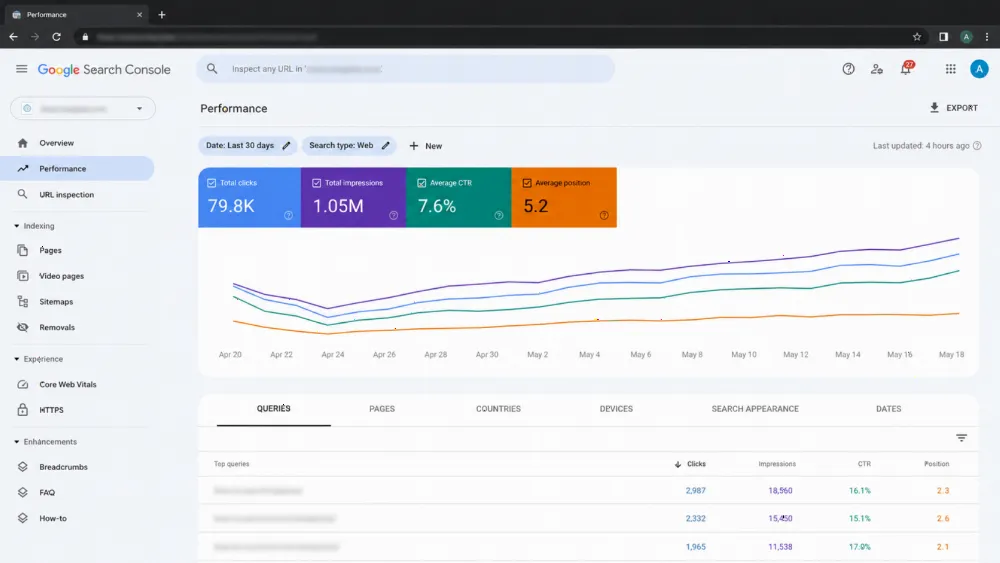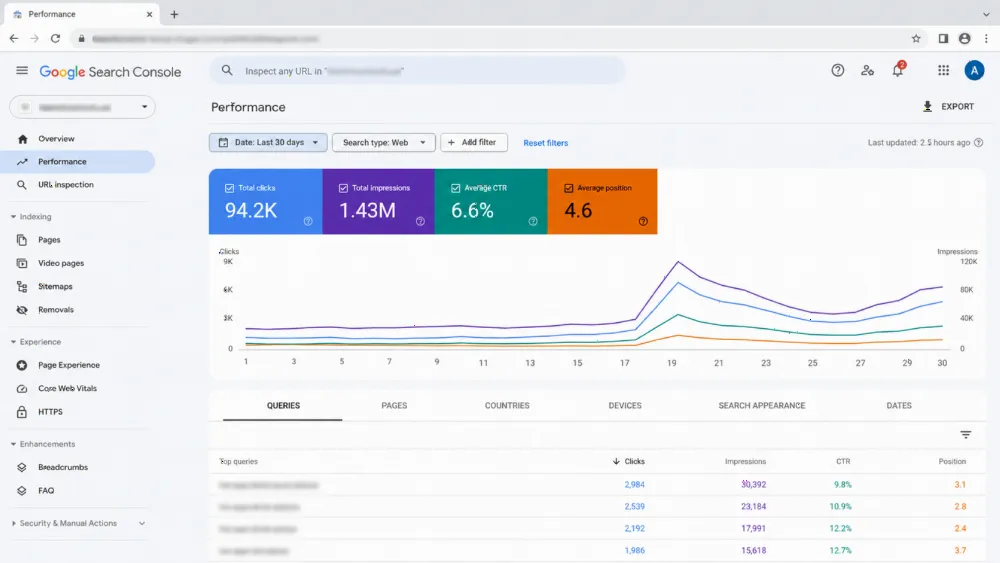
If your store passes desktop tests but shoppers still pause, tap again, or abandon at checkout, check field data first. Interaction to Next Paint, or INP, measures how long a shopper waits for the next visual response after a tap, click or key press. Per web.dev, good INP is 200 milliseconds or less, needs improvement is above 200 to 500 milliseconds, and poor is above 500 milliseconds, judged at the 75th percentile of real visits. For a UAE store, that verdict comes from real shoppers on real phones, most of them mid-range Android devices, not the fast handset in your office.
The short answer: your lab score is not your shoppers' INP — check field data first
Start with the Chrome User Experience Report, known as CrUX, through PageSpeed Insights and Search Console. That field data covers a rolling 28-day window and separates mobile from desktop. If mobile INP fails while desktop passes, believe the mobile result. Lab tools help diagnose once field data has named the problem template, usually product and category pages. Do not start with the homepage or a lab score. Start where shoppers tap: filters, search, variant pickers, add to cart and checkout. Our Core Web Vitals launch checklist covers wider pre-launch checks; this article stays on shopping interactions.
Why desktop tests pass and real shoppers still wait: lab data vs CrUX field data
Lab data is one simulated run: a set device, a set network, a clean load and no real shopping session. It cannot tap your filter twenty times, open variants, dismiss a consent banner and check out. Field data records interactions across the whole visit, so it captures the slow tap that only happens after scripts load, a long product list renders and a chat widget wakes up.
That gap explains the familiar pattern: a tidy lab report beside a Search Console warning. Neither tool is lying; they answer different questions. Use lab tools, especially DevTools, to reproduce an interaction. Use field data to decide whether it matters, which template it belongs to, and whether a fix helped real shoppers.
The device reality: what a mid-range Android does to your product-page JavaScript
A mid-range Android phone runs the same JavaScript materially slower than a flagship phone or desktop lab device. Its processor has less headroom, so a task that feels instant in testing can block the main thread long enough for a shopper to notice. Product pages make this worse: they carry galleries, recommendation blocks, review widgets, currency and language switchers, and filter logic that re-renders long lists.
Test on a real mid-range Android handset, not only in a desktop emulator. Use the live store, a real product with variants, and typical shopper network conditions. If an interaction only feels fine on a flagship, it is not fixed.

Find your worst interactions: filters, search, variants, add to cart and checkout, in that order
Work through the journey in shopping order. First, category filters and sorting, which re-render large lists and are tapped repeatedly. Second, search, where every key press can trigger suggestions. Third, variant pickers, which often recalculate price, stock and galleries together. Fourth, add to cart, where mini-cart updates, upsells and tracking compete for the same tap. Last, checkout, where address lookup, payment options and buy-now-pay-later widgets add handlers.
Record each interaction on the test phone, then confirm with field attribution where you have it, using the web-vitals attribution build or Search Console URL groups. Fix the worst offender first, then move down the list. Stores planning a wider build can review our e-commerce website development in Dubai page for how storefront structure affects these journeys.
Read the three delays: input delay, processing time and presentation delay on a real interaction
Every interaction has three parts. Input delay is the wait before the handler starts, usually because the main thread is busy with a long task. Processing time is the handler running: filtering, validating, recalculating and updating data. Presentation delay is the wait after the handler finishes until the browser paints the next frame, which grows when the page must lay out a large or complex result.
Naming the dominant delay tells you the fix. Long input delay points to competing scripts and long tasks. Long processing time points to heavy handler work. Long presentation delay points to an oversized DOM or a result set too big to render at once. In DevTools, record the interaction and read the Interactions track in those three parts before changing code.
Fix 1 — Cut and defer the third parties that wake up at tap time (chat, reviews, tags, consent)
Third-party scripts are the most common tap-time thieves on UAE stores. Chat widgets, review badges, consent managers, tag managers, analytics and payment or instalment widgets often listen for clicks, fire on interaction, or load their real weight only after the shopper acts. Accepting consent can release a queue of tags at once, and a tracking script can add work to the very add-to-cart tap it measures.
Audit every third party by interaction, not by page load. Ask whether it must run before the shopper sees a response. Defer what can wait until after the visual update, load chat and reviews behind a placeholder the shopper chooses to open, and remove tools nobody uses.
Fix 2 — Break up long tasks and do less work inside the tap handler
Any task longer than 50 milliseconds is a long task, and while it runs the browser cannot respond to the next tap or paint the last result. The fix has two halves. First, do less work synchronously: paint the immediate response, such as the selected filter state, then complete heavier work afterwards. Move analytics and non-visual updates out of the handler's first pass.
Second, break long work into smaller chunks and yield to the main thread between them, so pending taps and paints get through. Modern scheduling helpers can yield and resume; a deferred continuation achieves the same break where they are unavailable. Validate on the test phone: the handler should feel responsive while background work continues.

Fix 3 — Lighten the storefront interactions themselves: DOM size, filter/search design and hydration weight
Some lag is designed in. A category page rendering every product, filter option and hidden widget gives the browser a very large DOM to style, lay out and repaint after each tap. Paginate or progressively reveal long lists, keep filter panels lean, and avoid re-rendering the whole page when only the results grid needs to change.
Search deserves the same discipline: debounce key presses, cancel stale requests, and render a small, fast suggestion set. On framework-built storefronts, reduce hydration weight and prioritise the controls shoppers use first. These are design decisions as much as code decisions, which is why our SEO services in the UAE work treats template design and technical fixes together.
Verify like Google does: 75th percentile, 28 days, and re-testing on a real mid-range phone
Verify in two loops. The fast loop is local: repeat the fixed interaction on the real phone and in DevTools until the three delays are smaller and no long task sits on the tap. The slow loop is field data: INP is assessed at the 75th percentile over a rolling 28-day window, so a fix proves itself gradually as new visits replace old ones.
Do not declare victory from one lab run, or panic if Search Console shows the old value next week. Keep before-and-after notes, the template fixed and the date shipped. For the general discipline behind this verification, read our companion guide to fixing INP as a general discipline. Wider context sits in our technical SEO playbook on Core Web Vitals, crawl budget and indexing. For wider problems, see Shopify store speed troubleshooting and our owner diagnosis for a slow website.
Common mistakes: optimising for the lab device your shoppers do not own
The first mistake is testing only on a flagship phone or desktop and calling the store fast. The second is importing benchmark tables or promised improvements from other agencies as if they were your data; your only honest benchmark is your own CrUX field data by template. The third is fixing load metrics, images and caching while the failing tap stays untouched.
Owners also remove the wrong things, deleting a needed payment or review feature instead of deferring it, or add a performance plugin that introduces new listeners. Many teams fix one product template and forget the same handler lives on search, category and checkout templates too. Test the whole journey on the device class your shoppers use.

FAQ
What is a good INP score for an online store?
Per web.dev, good INP is 200 milliseconds or less at the 75th percentile of real visits. Above 200 to 500 milliseconds needs improvement, and above 500 milliseconds is poor. Judge your store on mobile field data, not a desktop lab run.
Why does my store pass PageSpeed lab tests but fail INP in Search Console?
Lab tests simulate one controlled load and do not shop your store. Search Console reports CrUX field data from real visits over 28 days, including slow filter, variant and checkout taps on mid-range phones. The field result is the one Google assesses.
Which interaction should I fix first?
Start with the slowest tap in the buying journey, usually category filters, then search, variant pickers, add to cart and checkout. Profile that single interaction in DevTools, split it into input delay, processing time and presentation delay, and fix the dominant part.
Do chat widgets and review tools really affect INP?
Yes, they can. Widgets that listen for clicks, load on interaction or fire tracking calls inside a tap add work before the next paint. Defer them, load them behind a placeholder, or remove them, and re-test the same tap afterwards.
How long until a fix shows in my INP score?
Locally, you can verify the interaction feels faster on a real phone immediately. In field data, allow the rolling 28-day CrUX window to refresh in PageSpeed Insights and Search Console before judging the template passed.
Get a technical audit run on your shoppers' devices, not ours (CTA)
If your field INP fails and the cause is not obvious, get the interactions profiled on the device class your customers actually use. A technical SEO audit from WebStackRank names the failing templates and interactions, splits each into its three delays, and sequences the fixes your developer can ship. Tell us your store platform, your Search Console INP status and the product journey that feels slowest, and we will start from your shoppers' evidence, not a desktop screenshot.